
Bookably lets guests find your listings and book directly, with 0% booking commission and no guest service fee. If you manage your properties in Hostaway, you can bring them onto Bookably in a few minutes. Once connected, Bookably imports the listings you choose, keeps your calendars and bookings in sync both ways so you're never double-booked, and passes guest messages through to your Hostaway inbox. Your Hostaway account stays the source of truth — you keep managing property details, photos, and pricing there, and Bookably keeps your imported listings in step.
Prerequisites
- A Hostaway account with permission to create API credentials
- Your Hostaway Account ID and API key (covered in the steps below)
- A Bookably host account — if you don't have one yet, you can create it when you connect
ℹ️ Only whole-property rentals priced in New Zealand dollars can be imported. Individual rooms and listings priced in other currencies show up during the preview step but aren't imported. Nothing in your Hostaway account changes either way.
Steps on Bookably (start the connection)
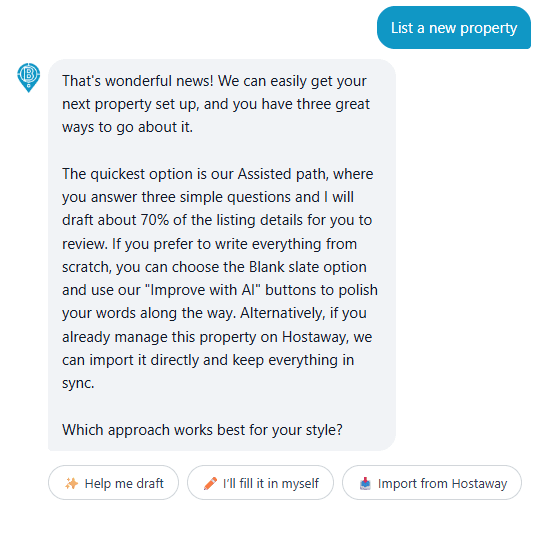
- Open the Host Assistant and choose List a new property, then select Import from Hostaway
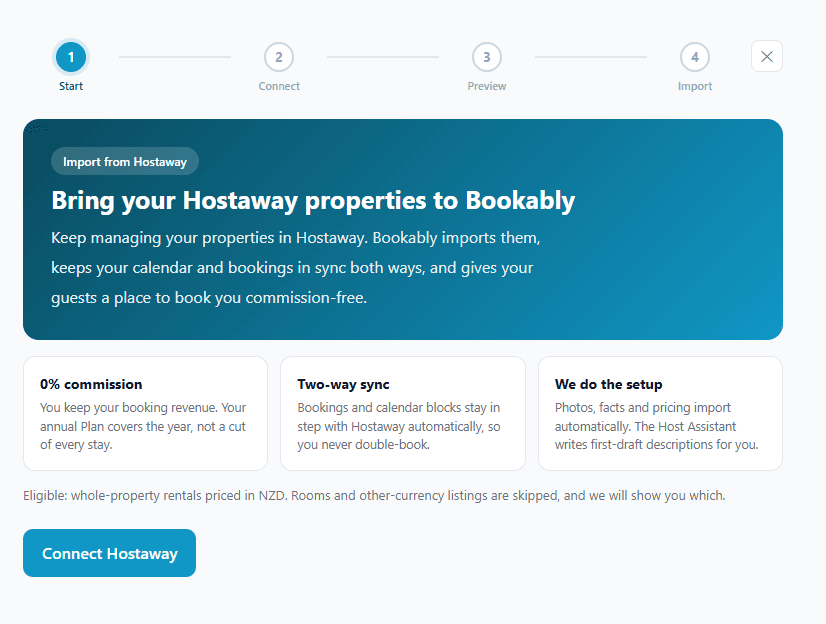
- Review the overview — Bookably imports your listings, keeps your calendar and bookings in sync both ways, and gives your guests a place to book you commission-free. Select Connect Hostaway
Steps on Hostaway
- Sign in to your Hostaway Dashboard
- Go to Marketplace and search for DIAMO
- Click Connect, then Create to generate your API credentials
- Hostaway shows your Account ID (a number, e.g. 40160) and an API Secret Key
⚠️ Copy both and save them securely — the secret key is displayed only once.
Finish connecting in Bookably
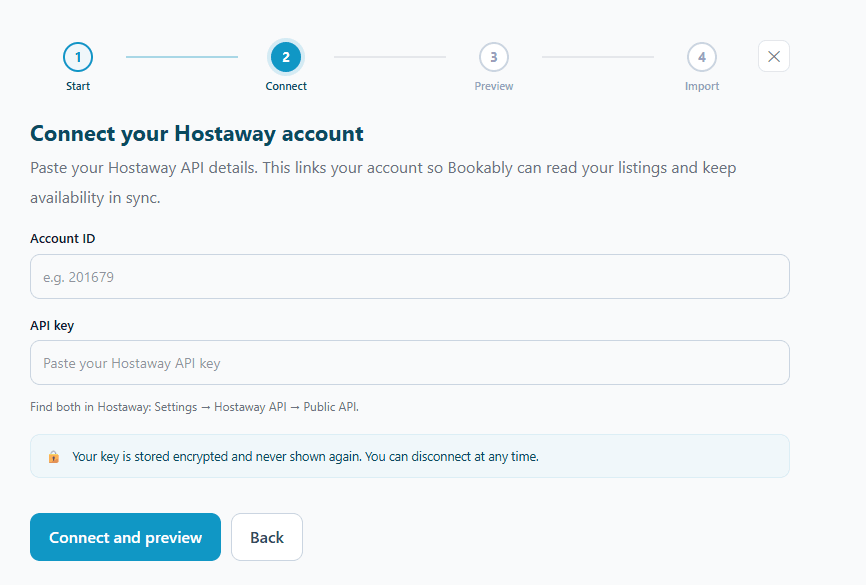
- Paste the Account ID and API key into the Connect step, then select Connect and preview. Your key is stored encrypted and never shown again, and you can disconnect at any time
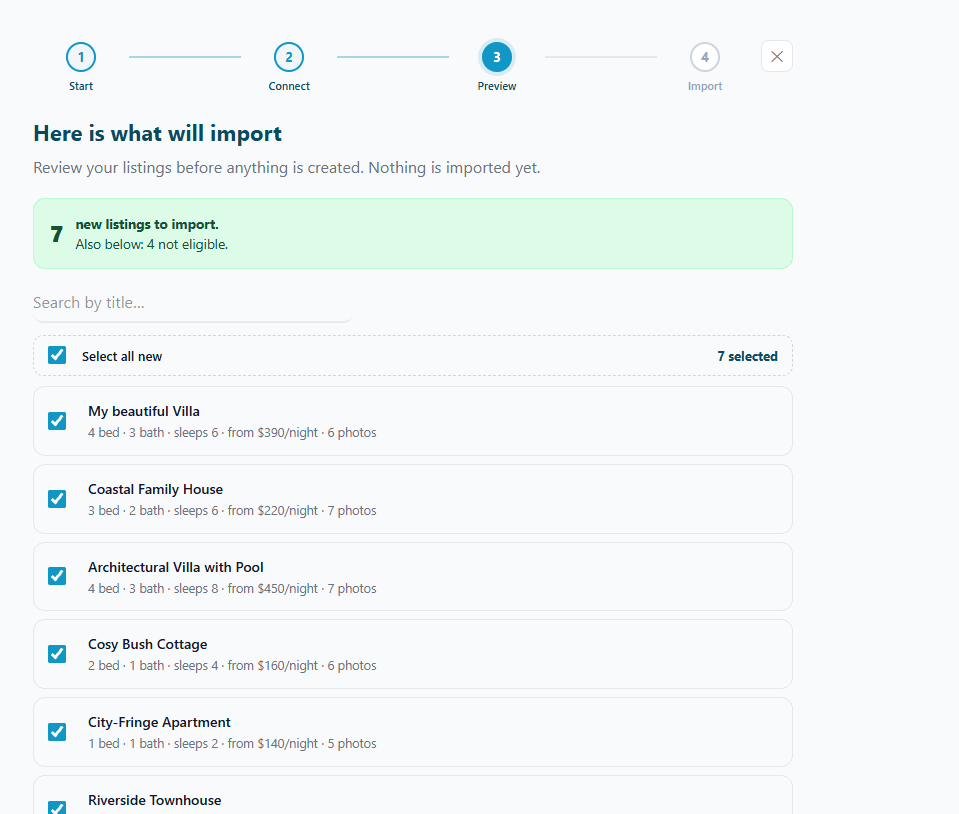
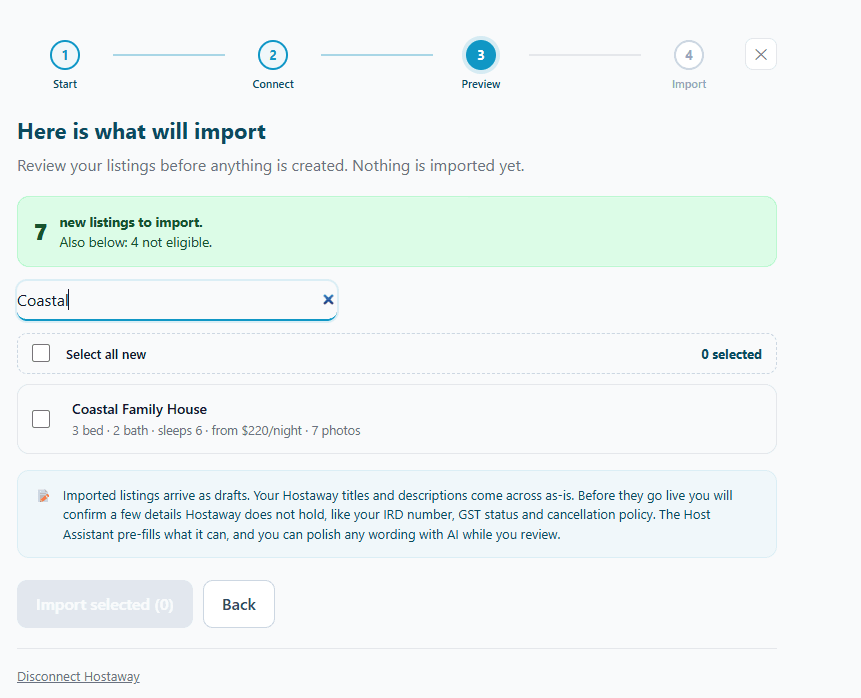
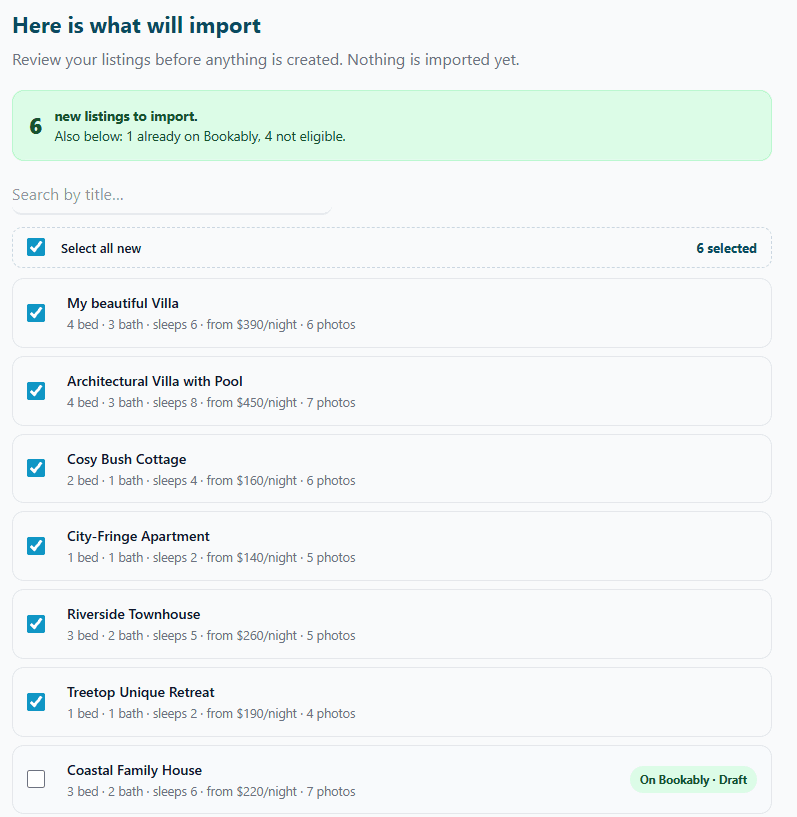
- Bookably shows a preview of the listings found in your Hostaway account — nothing is imported yet. Eligible listings are ticked by default; search by title and untick any you don't want yet. Ineligible listings (wrong currency, single rooms) are shown lower down with the reason and can't be selected
- Imported listings arrive as drafts, with your Hostaway titles and descriptions carried across as-is. You'll confirm a few details Hostaway doesn't hold (IRD number, GST status, cancellation policy) before going live — the Host Assistant pre-fills what it can. When your selection looks right, select Import selected
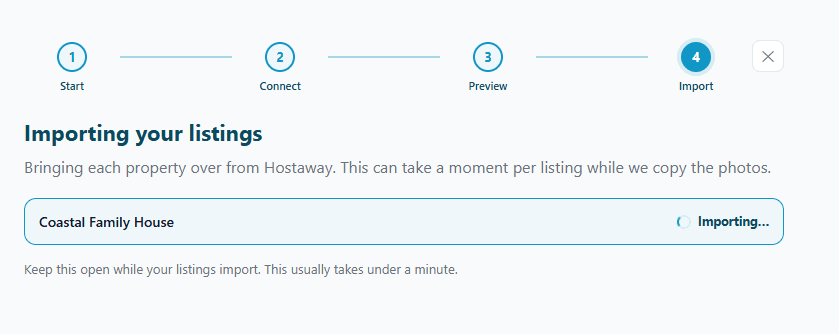
- Bookably imports each property one at a time, copying its photos as it goes. Keep the screen open — it usually takes under a minute
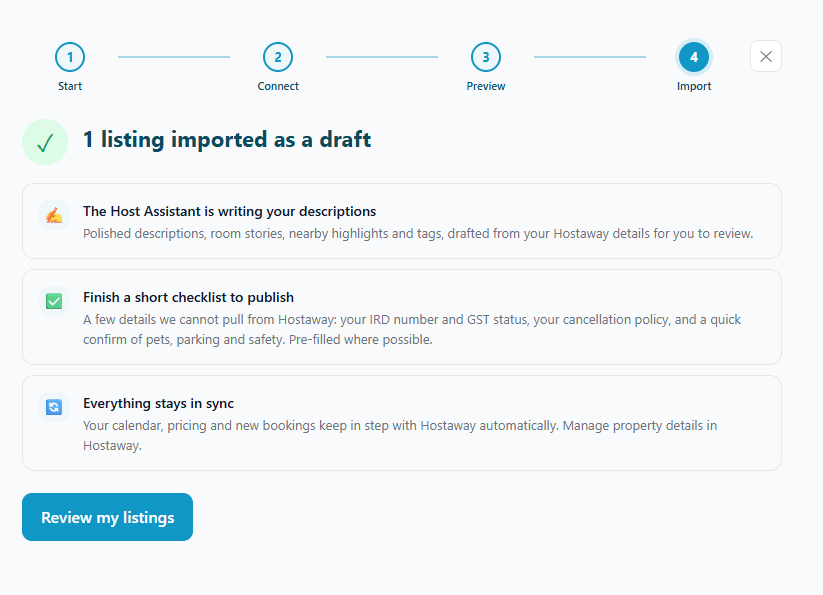
- Once it finishes, your listings are in as drafts. The Host Assistant drafts your written content (descriptions, room stories, nearby highlights, tags), there's a short checklist before publishing, and your calendar, pricing, and bookings stay in sync with Hostaway automatically. Select Review my listings to continue
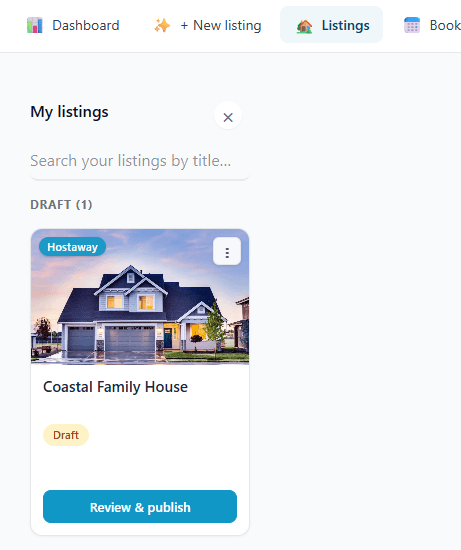
- Your imported properties appear under My listings as drafts, each marked with a Hostaway badge. Select Review & publish on a listing to open it
- The Host Assistant walks you through each section. Fields brought across from Hostaway are marked Synced from Hostaway; AI-drafted fields show a soft amber band, so you can accept them, type over them, or polish the wording with Improve with AI. Then finish the details New Zealand requires: GST status and IRD number (where they apply), a confirmed cancellation policy, and a quick confirm of pets, parking, safety, and house rules
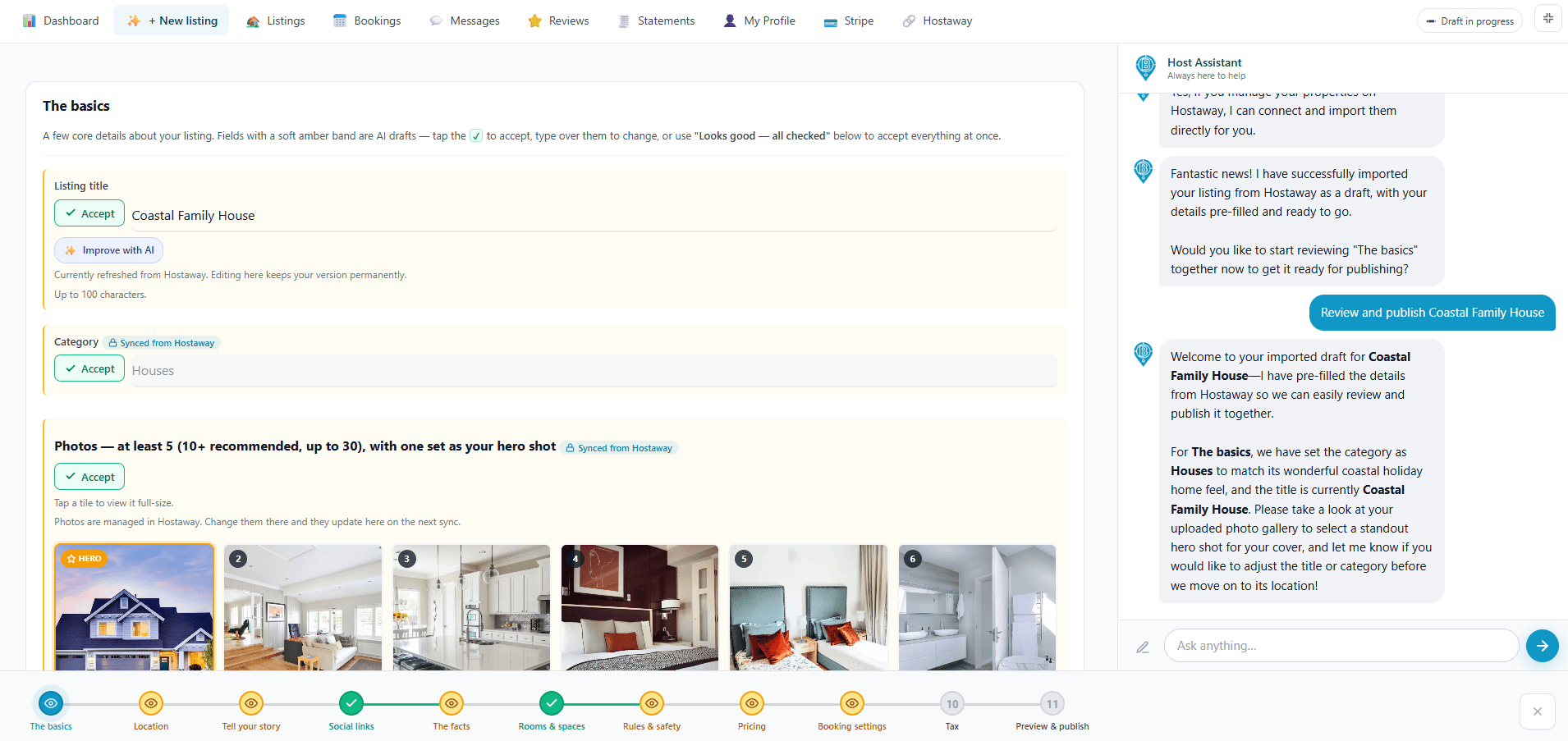
- When every section is confirmed, publish — your listing appears in search results straight away
How syncing works after you connect
- Hostaway stays the master — keep managing property details, photos, and pricing in Hostaway; Bookably keeps your imported listings up to date
- Calendars and bookings stay in sync both ways — a booking or block on either side updates the other, so dates never clash
- Guest messages come through — messages for a Bookably booking are passed to your Hostaway inbox
- You keep more of every booking — 0% commission, no guest service fee
Once connected, a Hostaway item appears in your top menu — reopen the import screen anytime to bring across listings you added later. Anything already imported is marked On Bookably so you never import it twice.
Disconnecting
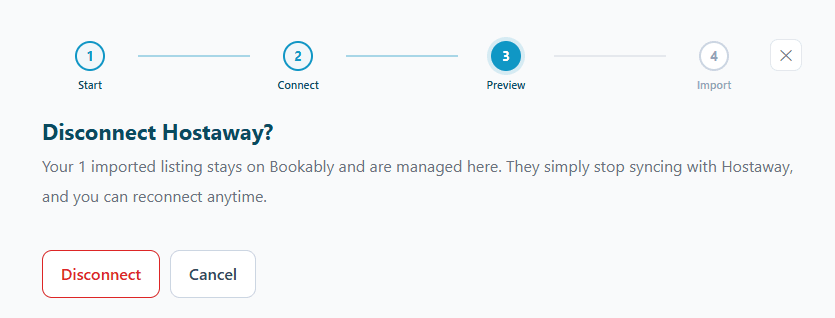
You can disconnect Hostaway at any time from the import screen. Your imported listings stay on Bookably and are managed there — they simply stop syncing with Hostaway, and you can reconnect whenever you like. Disconnecting in Bookably doesn't change anything in your Hostaway account.
Need help?
You can ask the Host Assistant anything while you connect. For anything else, contact Bookably Support.