
Connect WelcomeScreen with Hostaway
Connecting your WelcomeScreen account to Hostaway is quick and easy, allowing you to manage your properties seamlessly. Just follow these steps to sync your systems and streamline your operations:
Steps on Hostaway
- Go to Hostaway Dashboard
- Click on Marketplace within the Dashboard
- Search for WelcomeScreen and click on the Connect button
- A small box will appear > Click on "Create"
- The Account ID and the API Key will be presented in a new window
- Copy your Account ID and API Key and keep them somewhere safe for later
Steps on Welcome Screen
- Sign up for a WelcomeScreen account. If you have already registered, log in to your account.
- After signing up/logging in, you will be asked to set up your account. You will have two options.
- One as “Sync Property Management System” and the other one
- As “Add properties manually”.
- Click on “Sync Property Management System”

- Before continuing, remember to retrieve the Hostaway Account ID and API Key
- Return to WelcomeScreen, click on “ Sync Properties” and then select Hostaway from the PMS list.

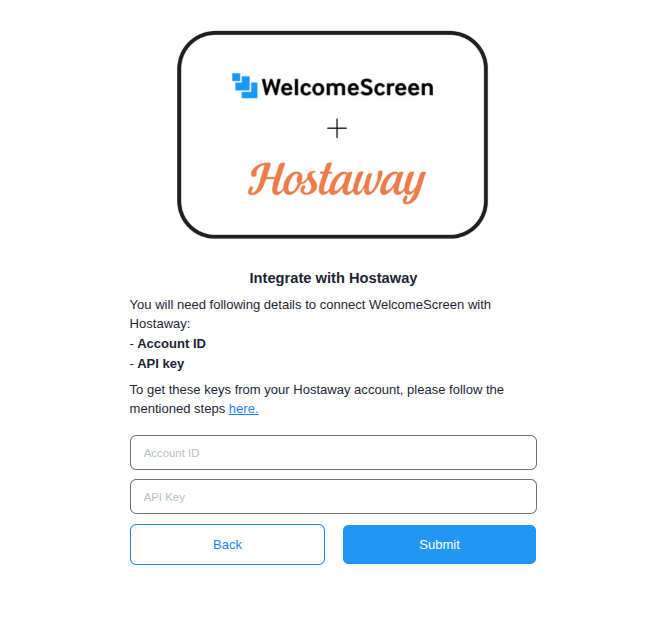
- After selecting Hostaway, you’ll see a screen shown below. Click ‘Continue’ to proceed.

- Paste the Account ID and API Key that you had copied/noted down and click Submit to complete the connection.
Once the connection is established, you’ll be redirected to the WelcomeScreen app, where you can efficiently manage your properties through Hostaway PMS.
If you encounter any issues or have questions, feel free to reach out at support@welcomescreen.com.