

Got2Go is an accommodation and event marketplace, with no fees for PMs (0% commission).
With Got2Go, you can:
- List unlimited properties for free
- Receive payments instantly (when a guest books)
- Use your own cancellation policies
- Get new types of travelers, including event travelers, Go+ members, more
- Receive ongoing support from the Got2Go partnership team anytime
*For any PM with properties in the US
If you’re a Hostaway user, you can easily list your properties on Got2Go.
Important info to know
Connecting Hostaway to Got2Go
As a Hostaway user, you can easily list your properties on Got2Go in 3 steps:
Step 1: Create a new API key in your Hostaway Dashboard
First, you need to find your Hostaway ID and API key. You can activate the connection from the 'Marketplace' for the relevant partner to generate your API Key:
- Go to the Hostaway Dashboard
- Click on 'Marketplace' within the dashboard, then search for the relevant partner and click on the 'Connect/Configure' button available there:
- This will expand the partner box, and you can click on 'Connect' again to start generating the Keys:
- Then you can click 'Create' to generate the API Key:
- The new credentials will then be presented on the screen. Please make sure to copy and save the API Key safely as it will be visible only once:
You can also refer to the partner article on how to connect How to connect to Got2Go with Hostaway (step-by-step guide)
Step 2: Sign up with Got2Go
-
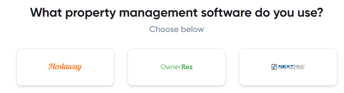
Go to this link and complete our partner signup process. Select "Hostaway" to start the process.
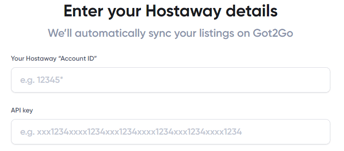
- You'll need to enter your Hostaway Account ID within the form. Use the keys Ctrl+V (Windows) or Cmd+V (Mac) to easily paste it into this field.
- If set up successfully, you should see the following:

Select "Next" at the bottom right of the screen to continue. If you receive an error at this stage, contact partners@got2go.com.
- If you already have a Got2Go account, you can sign in now. We do not recommend sharing personal travel accounts, so it may be worth creating an account under a shared business email for dashboard access. Use the "Sign up" link on this page if needed to create a new account and proceed.
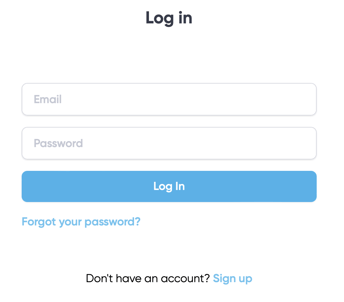
- After logging in, confirm the requested details of your company, then select "Next". Use the best contact details for Got2Go to contact your company.
- Enter your business address and select "Next". Use the primary business address for your company.
- Complete the following email and phone number fields, then select "Next". Use the contact details you'd like guests who book your properties to receive.
- Complete the following page to help us QA and test your properties easily, then select "Next".
- If you have any feedback, things to test, or other requests and important information to share with us, let us know, then select "Next". Feel free to share with us anything at all!
- Review our partners' terms and agreement, and select the applicable boxes, then select "Next".
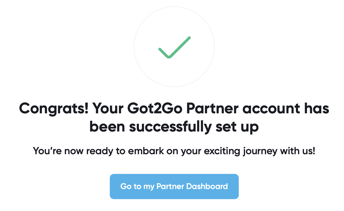
- You'll now be able to see your properties live on Got2Go through your host dashboard. Select "Go to my Partner Dashboard" to continue.
- That's it! Your properties and data should start to sync and will be ready for you to review.
Step 3: Your properties go live on Got2Go
- After your properties are live, feel free to contact our partners team at partners@got2go.com for any questions, any time.
- You'll be able to quickly see your properties on Got2Go through the Partner Dashboard at https://got2go.com/partner. Make sure to log in to the same account you established the connection with in Step 2. You'll be able to learn more about the Partner Dashboard here.