
This guide covers day-to-day invoice management operations, including editing draft invoices, making corrections to finalized invoices, and issuing credit notes.
Understanding Invoice Statuses
Before managing invoices, it's important to understand their different states:
Status | Description | Can Edit? | Can Cancel? | Actions Available |
|---|---|---|---|---|
Draft | Invoice created but not finalized | ✅ Yes | ✅ Yes | Edit, Delete, Finalize |
Invalid | Invoice failed validation and required User to Input missing details | ✅ Yes | ✅ Yes | Edit, Delete, Finalize |
Finalized / Submitted | Invoice closed and submitted to tax authority | ❌ No | ❌ No | View, Download, Correct, Credit Note |
Approved | Approved by Tax Authority | ❌ No | ❌ No | View, Download, Can update Invoice by |
Rejected | Rejected by Tax Authority due to failed compliance requirement | ❌ No | ❌ No | Issue Correction by Credit Note |
View Invoice List and Edit Draft
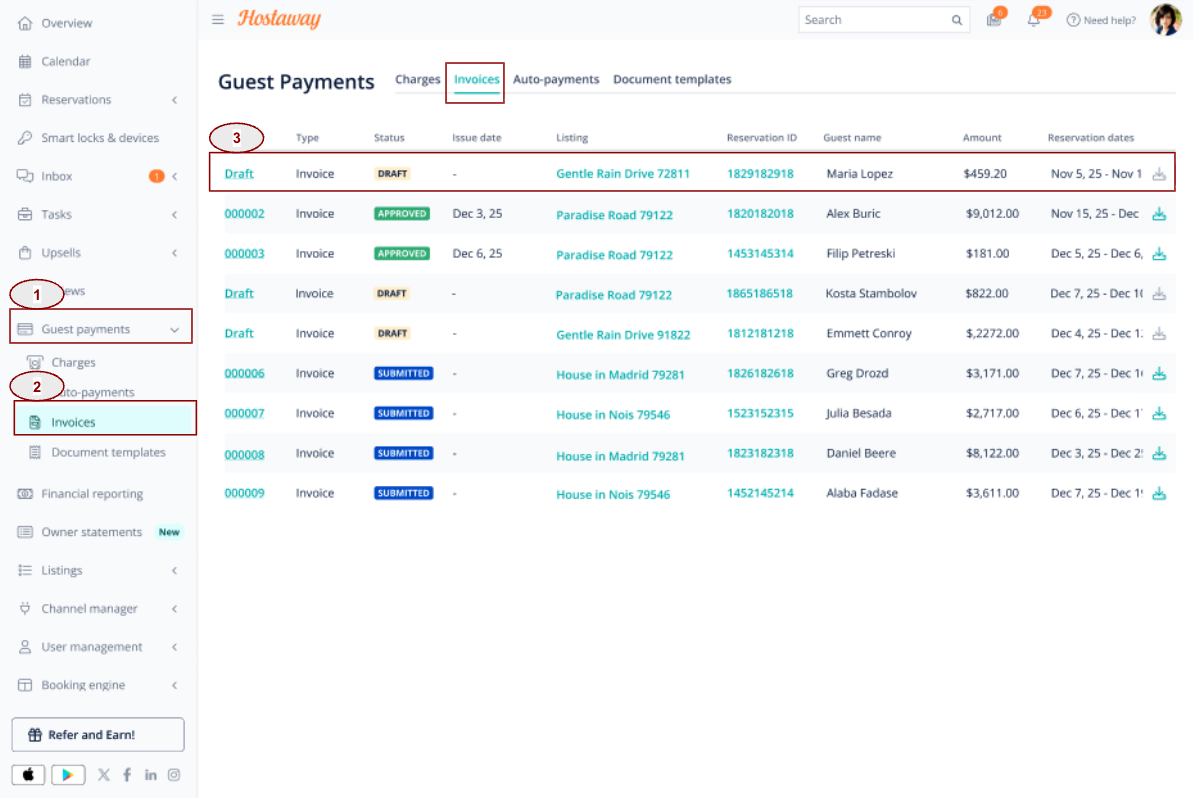
Click Guest Payments > Invoices
Review your invoice list (showing invoice number, Guest name, date, amount, and status).
Click on the “Draft”
Edit Buyer Information
Click “Save”
 Important Note
If buyer details are provided, all required fields (name, Tax ID/NIF, full address) must be completed. The Spanish Tax Authority validates the Guest ID number and will reject the invoice if it is incorrect or missing.
If no buyer details are provided, a simplified invoice will be issued, which does not require buyer identification.
Other Invoice Details
The following are other Invoice Details that can be edited in “Draft” status
1. Guest Information:
2. Reservation Details
3. Price Breakdown
Click “Edit in Reservation” and this will redirect to the Reservations details Page for you to apply any required edits.
Note: Changes made to the reservation will be reflected in any draft invoices associated with that reservation.